Apple Wallet or Google Wallet: what changes for your loyalty card
You don’t have to choose: your customers have an iPhone or an Android, and the same card has to live in both. But the two Wallets don’t follow the same rules. Here are the ones that matter for a business.
By the HoorayPass teamPublished September 30, 20266 min readJump to sources

On this page
The short answer
Offer both. A single QR code opens a page that recognizes the phone: the Apple Wallet button shows on an iPhone, the Google Wallet button on Android. The customer doesn’t have to think about it, and neither do you.
What follows explains why the same card doesn’t behave quite the same way from one phone to the other.
The side-by-side table
| Point | Apple Wallet (iPhone) | Google Wallet (Android) |
|---|---|---|
| Phones | iPhone; iOS 27, released in September 2026, runs on iPhone 11 and later | Android 9 or later, with Google services |
| Adding the card | Link, email, text or QR code, with the official "Add to Apple Wallet" badge | Link, email, message or QR code, with the official "Add to Google Wallet" button |
| Updates | The business pushes the new version; the customer can also pull down to refresh | The business changes the card through Google’s interface |
| Change notification | A text chosen by the business shows when a value changes | At most 3 notifications per card per 24 hours; text written by Google for a simple balance change |
| Lock screen | Discreet suggestion near the business: 10 places at most, about 100 metres | Proximity reminder relaunched in October 2025: 10 addresses, location "always allowed" required, radius chosen by Google |
| Contactless (NFC) | Subject to Apple’s approval and a compatible terminal | With a Smart Tap certified terminal |
Notifications, the real difference
On iPhone, a notification comes from a change: the stamp count goes from 7 to 8, and the card can show "You now have 8 stamps". Apple asks that these messages be kept for useful information and never used for marketing.
On Android, Google lets you send a message with a notification, but at most 3 per card per 24 hours, and it can lower that quota if it sees abuse. In both cases, the customer can turn off a card’s notifications.
The lock screen, a promise to take with care
You often read that the card "shows up when the customer walks past the business". That’s true, with conditions. At Apple, it’s a passive suggestion, with no sound or alert, and the customer can turn it off. At Google, the customer must have given Wallet permanent location access, which few people do.
It costs nothing to set up, and it sometimes helps. But don’t build your program on it.
Contactless: built, switched on once approved
Showing the card by holding the phone near a terminal, without opening it, exists on both sides. Apple requires its approval and a compatible terminal; Google requires a Smart Tap certified terminal. HoorayPass has built this feature; it is switched on as soon as the provider approves it, with no promised date. Until then, the QR code does the job on every phone.
What your customers see
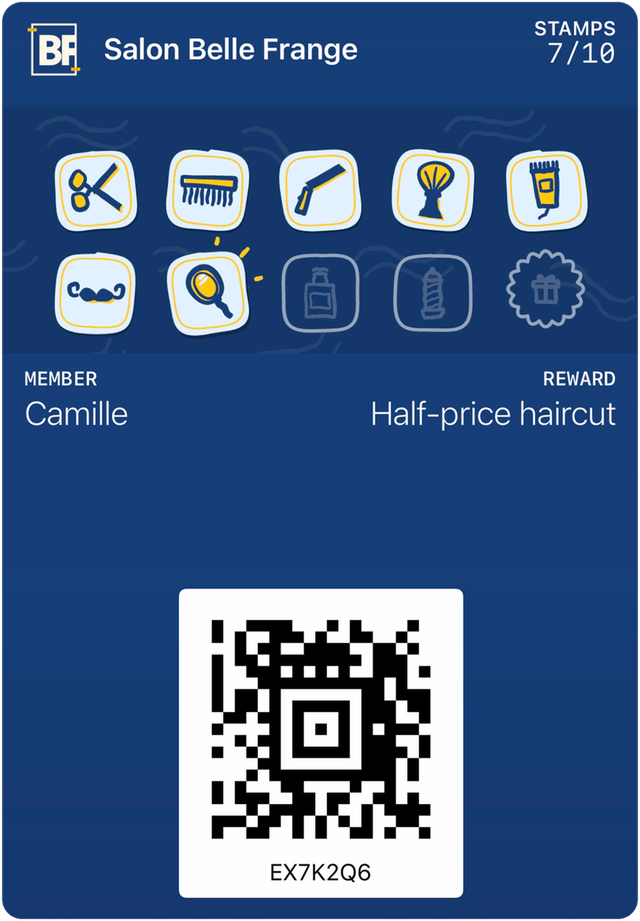
Both cards carry your logo, your colours, your stamps and the reward. Their layout follows each Wallet’s templates: they look alike without being identical, like the same poster printed on two kinds of paper. A customer on iPhone and a customer on Android see the same information at the same time.
And for phones that have neither, read the article on loyalty cards without an app. Loyalty card without an app
In short
- Offer both Wallets with a single QR code that recognizes the phone.
- Notifications are limited on both sides: keep them for what matters.
- The lock screen is a bonus, not a strategy.
- Contactless depends on an approval and a compatible terminal.
Sources
- Apple, using passes in Wallet on iPhone (support page)(opens in a new tab)
- Apple, adding a web service to update passes(opens in a new tab)
- Apple, pass field content and change messages(opens in a new tab)
- Apple, showing a pass on the lock screen(opens in a new tab)
- Apple, Human Interface Guidelines for Wallet(opens in a new tab)
- Apple, loyalty passes in Wallet (contactless)(opens in a new tab)
- Google, triggering push notifications (limit of 3 per 24 hours)(opens in a new tab)
- Google, Google Wallet release notes(opens in a new tab)
- Google, merchant locations for proximity reminders(opens in a new tab)
- Google, Smart Tap(opens in a new tab)
- Wikipedia, iOS 27 (release date and devices)(opens in a new tab)